When starting a new Laravel project, many developers immediately run:
composer create-project laravel/laravel my-app
And start coding.
But a Laravel application depends on several things working together:
PHP
Composer
Laravel
PHP Extensions
Database
Environment Variables
Node.js / NPM
Third-party Packages
If these components are not compatible with each other, developers may face confusing errors before writing a single line of application code.
Understanding the environment is therefore an important part of Laravel development.
In this article, we’ll look at how PHP, Composer, Laravel, .env, and third-party packages work together.
1. Understand the Laravel Environment
A Laravel project doesn’t run by itself.
It depends on the environment where it is installed.
A simplified view looks like this:
Operating System
       ↓
PHP
       ↓
PHP Extensions
       ↓
Composer
       ↓
Laravel Framework
       ↓
Third-party Packages
       ↓
Your Application
For frontend-related features, we may also have:
Node.js
   ↓
NPM / PNPM / Yarn
   ↓
Vite
   ↓
Frontend Assets
Each layer has compatibility requirements.
If one layer doesn’t meet the requirements of another layer, problems can appear.
2. PHP Version Matters
Laravel applications run on PHP.
But not every Laravel version supports every PHP version.
For example, a project may require:
PHP >= 8.2
while another project may require:
PHP >= 8.3
So before installing Laravel, check your PHP version:
php -v
You might see:
PHP 8.3.33
This simple command can save a lot of debugging time.
Before starting a project, always check the PHP requirement of the Laravel version you are going to use.
3. PHP Extensions Are Also Important
Installing PHP itself is not enough.
Laravel and its packages may require different PHP extensions.
Common extensions include:
OpenSSL
PDO
Mbstring
Tokenizer
XML
Ctype
JSON
Fileinfo
BCMath
Curl
GD
Intl
Zip
You can check installed extensions with:
php -m
Or search for a specific extension:
php -m | grep mbstring
On Windows, the exact command may vary depending on your terminal.
If an extension is missing, Composer may refuse to install a package.
For example:
Your requirements could not be resolved to an installable set of packages.
Sometimes the problem is not Laravel at all.
It can simply be a missing PHP extension.
4. Composer Is the Dependency Manager
Composer is one of the most important tools in the PHP ecosystem.
Laravel uses Composer to manage PHP dependencies.
For example:
composer require laravel/sanctum
Composer downloads the package and its dependencies.
Conceptually:
Your Laravel Application
        ↓
Composer
        ↓
Package A
Package B
Package C
        ↓
Their Dependencies
This is much better than manually downloading PHP libraries and copying them into your project.
5. composer.json Is the Project’s Dependency Definition
Every Laravel project has a:
composer.json
This file defines important information about the project.
For example:
{
    "require": {
        "php": "^8.2",
        "laravel/framework": "^12.0"
    }
}
It tells Composer:
This application requires PHP 8.2-compatible versions and Laravel 12.
It may also contain packages such as:
{
    "require": {
        "laravel/framework": "^12.0",
        "laravel/sanctum": "^4.0",
        "spatie/laravel-permission": "^6.0"
    }
}
This file is extremely important.
It represents the application’s declared dependencies.
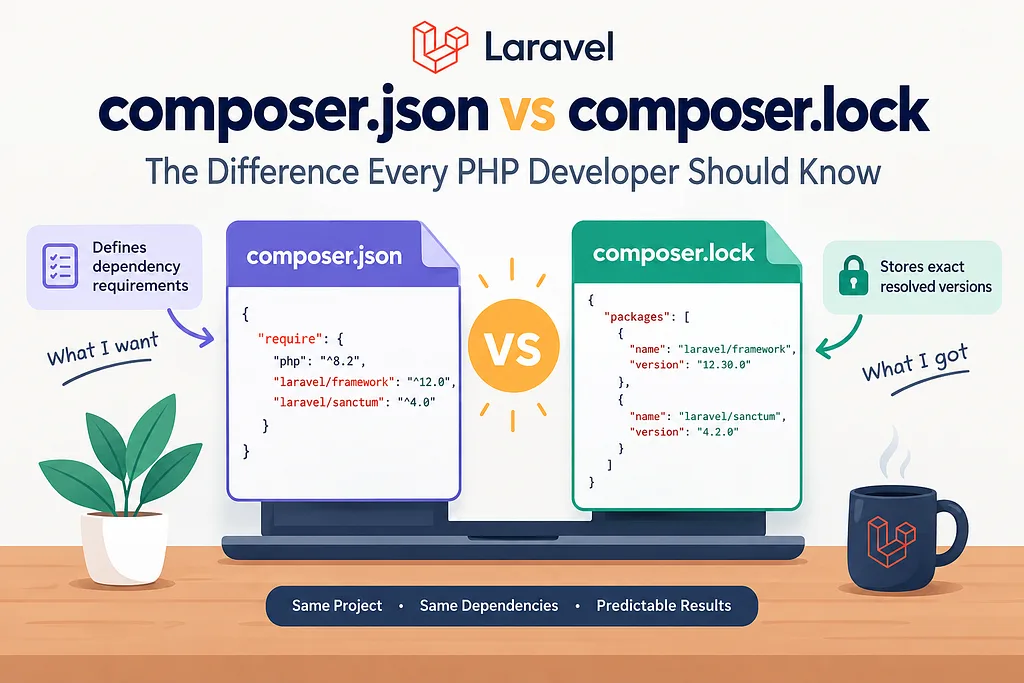
6. composer.lock Is Different
Alongside composer.json, you will usually find:
composer.lock
The difference is important.
composer.json
Defines:
What versions are allowed?
composer.lock
Defines:
What exact dependency versions are currently installed?
For example:
composer.json
        ↓
Allowed versions
composer.lock
        ↓
Exact resolved versions
When another developer clones the project, running:
composer install
uses the lock file to install the resolved dependency versions.
This helps keep development environments consistent.
7. composer install vs composer update
This is one of the most important Composer concepts.
composer install
Usually used when setting up an existing project.
composer install
It installs dependencies based on:
composer.lock
composer update
Used when you intentionally want Composer to resolve newer dependency versions within the constraints.
composer update
It may modify:
composer.lock
So don’t randomly run:
composer update
just because a package is not working.
First understand what dependency conflict you are actually dealing with.
8. Why Package Installation Can Fail
Suppose your project uses:
PHP 8.3
Laravel 12
Now you try:
composer require some/package
Composer may return:
Your requirements could not be resolved to an installable set of packages.
Why?
Because packages have their own requirements.
Imagine:
Laravel
    requires Package X version 3
Your new package
    requires Package X version 2
Composer cannot satisfy both requirements.
So the problem isn’t necessarily:
“Composer is broken.”
It may simply be a dependency compatibility problem.
9. Read the Error Instead of Fighting Composer
When Composer shows an error, look for lines such as:
requires php ^8.1
requires laravel/framework ^11
requires illuminate/support ^10
requires symfony/...
conflicts with ...
These lines tell you what is actually incompatible.
A useful command is:
composer why-not package/name version
For example:
composer why-not laravel/framework 12.0
This can help identify which installed dependency prevents a particular version from being installed.
Composer can also show why a package exists:
composer why package/name
Understanding these commands is much more useful than repeatedly deleting vendor and trying again.
10. Don’t Ignore the PHP Version
A common mistake is:
“The package supports Laravel, so it should work.”
Not necessarily.
A package can depend on:
PHP version
Laravel version
Symfony components
Other packages
PHP extensions
For example:
Your Project
PHP 8.3
Laravel 12
Package A
Package B
Package C
If Package B only supports PHP 8.1–8.2, you may have a conflict even though Laravel itself works perfectly with PHP 8.3.
That’s why package compatibility should always be checked.
11. The .env File
Laravel uses environment variables to store environment-specific configuration.
The main file is:
.env
For example:
APP_NAME=Laravel
APP_ENV=local
APP_KEY=
APP_DEBUG=true
APP_URL=http://localhost
DB_CONNECTION=mysql
DB_HOST=127.0.0.1
DB_PORT=3306
DB_DATABASE=my_project
DB_USERNAME=root
DB_PASSWORD=
The important idea is:
Application code should not hard-code environment-specific values.
For example, don’t write:
DB::connection('mysql');with credentials hard-coded somewhere in your application.
Instead, configuration can read values from the environment.
12. .env Is Environment-Specific
Your local machine may have:
APP_ENV=local
APP_DEBUG=true
Production should normally have different values:
APP_ENV=production
APP_DEBUG=false
Database settings will also be different.
For example:
Local
    localhost
    local database
    debug enabled
Production
    production database
    production services
    debug disabled
The same codebase can therefore run in different environments with different configuration.
13. Never Commit Sensitive Environment Variables
Your .env file can contain sensitive information:
Database password
API keys
Mail credentials
Payment credentials
Application secrets
That’s why .env should generally not be committed to Git.
Instead, Laravel provides:
.env.example
which can contain the structure without exposing real secrets.
For example:
DB_DATABASE=
DB_USERNAME=
DB_PASSWORD=
A new developer can then create:
.env
from the example and provide their local values.
14. APP_KEY Is Important
Laravel applications use:
APP_KEY=
for application encryption.
After creating a fresh Laravel application, you normally run:
php artisan key:generate
This generates the application key.
Don’t casually change the production APP_KEY.
Changing it can affect encrypted data, sessions, and other application behavior.
15. Database Configuration
A Laravel application’s .env usually contains database configuration.
For MySQL:
DB_CONNECTION=mysql
DB_HOST=127.0.0.1
DB_PORT=3306
DB_DATABASE=my_project
DB_USERNAME=root
DB_PASSWORD=
Before running migrations, make sure:
MySQL is running
Database exists
Credentials are correct
Port is correct
PHP PDO extension is available
Then:
php artisan migrate
If the migration fails, don’t immediately change Laravel code.
First check the environment.
16. Node.js and Frontend Dependencies
Modern Laravel applications often use Vite for frontend asset management.
That means PHP isn’t the only runtime you need to understand.
You may also need:
Node.js
NPM
Check:
node -v
npm -v
Then install frontend dependencies:
npm install
And start the development server:
npm run dev
So a Laravel project can have two dependency ecosystems:
PHP Ecosystem
    ↓
Composer
    ↓
Laravel + PHP Packages
JavaScript Ecosystem
    ↓
NPM
    ↓
Vite + Frontend Packages
Understanding this separation makes debugging much easier.
17. Local Environment Should Match Production
One of the most painful problems is:
“It works on my machine.”
For example:
Local
PHP 8.3
MySQL 8
Node 22
Production
PHP 8.1
MySQL 5.7
Node 18
The application may behave differently.
Try to keep important runtime versions reasonably aligned.
Check:
php -v
composer --version
node -v
npm -v
And document the required versions.
18. Use a Version Strategy
When starting a project, decide what versions you’re going to use.
For example:
Laravel: 12.x
PHP: 8.3
MySQL: 8.x
Node.js: LTS
Then document it.
You can create a simple:
README.md
section:
## Requirements
PHP >= 8.3
Composer 2.x
Node.js LTS
MySQL 8.x
This makes onboarding much easier for another developer.
19. Don’t Install Packages Just Because They Exist
Modern PHP ecosystems have thousands of packages.
It can be tempting to install a package for every small problem.
For example:
Need a helper?
→ Install a package.
Need a date function?
→ Install a package.
Need a simple validation?
→ Install a package.
This can make the project unnecessarily dependent on third-party libraries.
Before installing a package, ask:
Can Laravel already do this?
Can PHP already do this?
Is the package actively maintained?
Does it support my PHP version?
Does it support my Laravel version?
Does the project actually need it?
A package should solve a real problem.
20. Check Package Compatibility Before Installing
Before adding a package, check its requirements.
Look for:
PHP Version
Laravel Version
Required Extensions
Related Packages
Maintenance Status
License
For example:
Project
PHP 8.3
Laravel 12
Package
PHP >= 8.2
Laravel 11/12
That is a much safer starting point than simply running:
composer require package/name
and hoping everything works.
21. Keep Dependencies Under Control
A large application may eventually have many packages:
Laravel
Sanctum
Permission
Image Processing
Excel
Payment
Analytics
Logging
Every dependency increases the complexity of the project.
Each package can introduce:
Updates
Security issues
Compatibility problems
Breaking changes
Maintenance requirements
Therefore:
Dependencies are architectural decisions.
They should be treated seriously.
22. Production Environment Is Different
Local development might use:
APP_DEBUG=true
Production should normally use:
APP_DEBUG=false
Production also needs:
HTTPS
Secure database credentials
Proper cache configuration
Queue workers where required
Correct filesystem permissions
Secure environment variables
Logging
Backups
Monitoring
A project is not finished when:
php artisan serve
works locally.
Deployment is part of the application’s lifecycle.
23. A Practical Laravel Setup Workflow
When starting a new Laravel project, a simple workflow can be:
Check PHP Version
       ↓
Check Composer
       ↓
Create Laravel Project
       ↓
Configure .env
       ↓
Create Database
       ↓
Generate APP_KEY
       ↓
Run Migrations
       ↓
Install Frontend Dependencies
       ↓
Install Required Packages
       ↓
Run Tests
       ↓
Start Development
Commands may look like:
php -v

composer --version
composer create-project laravel/laravel my-app
cd my-app
cp .env.example .env
php artisan key:generate
php artisan migrate
npm install
npm run dev
On Windows, copying .env.example can also be done through your editor or PowerShell depending on your shell environment.
24. When Something Breaks, Check the Environment First
If Laravel suddenly stops working, don’t immediately rewrite your application.
Check:
PHP Version
Composer Version
Node Version
Environment Variables
Database Connection
PHP Extensions
Package Versions
File Permissions
Cache
Logs
For example:
php -v
composer show
php artisan about
Laravel’s:
php artisan about
command can provide a useful overview of the application’s environment and configuration.
25. The Real Lesson
Laravel development is not just:
Write PHP
      ↓
Run Laravel
      ↓
Done
A production application is an ecosystem:
Operating System
       ↓
PHP
       ↓
PHP Extensions
       ↓
Composer
       ↓
Laravel
       ↓
Third-party Packages
       ↓
Database
       ↓
Environment Configuration
       ↓
Node.js / Vite
       ↓
Application
       ↓
Production Infrastructure
When you understand how these pieces connect, dependency errors become much easier to diagnose.
Final Thoughts
A good Laravel developer should know more than Laravel syntax.
You should understand:
- Which PHP version the project requires
- How Composer manages dependencies
- The difference between composer.json and composer.lock
- When to use composer install and composer update
- How Laravel packages depend on specific versions
- How .env controls environment-specific configuration
- Why PHP extensions matter
- How Node.js and Vite fit into a Laravel project
- Why local and production environments should be compatible
- How to diagnose dependency conflicts
Before installing a package, don’t ask only:
“How do I install this package?”
Also ask:
“Does this package belong in my application, and is it compatible with my current environment?”
That small change in mindset can prevent hours of dependency debugging.
A stable Laravel application starts with a stable development environment.
Комментарии (0)
Пока нет комментариев — будьте первым.